Blog · 14 min read
6 Step Rollout for Developers to Fully Honor Prefers Reduced Motion

The prefers-reduced-motion media feature tells your CSS and JavaScript that someone has switched on a system setting asking for less non-essential motion. Honor it. Default to calmer, motion-free interfaces, layer in animation only under no-preference, and gate every JavaScript-driven effect so it checks the same signal. Confirm your work with real OS-level toggles, not just DevTools, and know that WCAG 2.3.3 (a Level AAA success criterion) asks for a way to disable interaction-triggered motion that isn’t essential to the experience.
TL;DR:
Always check system settings with window.matchMedia before initializing animations to ensure JavaScript effects respect reduced-motion preferences.
Gate every JS-driven animation and effect using media queries to prevent unnecessary motion for users with reduced-motion enabled.
Test around OS-level toggles, not only DevTools emulation, by switching preferences on real devices to verify proper behavior across different platforms.
Use explicit media queries with prefers-reduced-motion: reduce and no-preference for clearer, more future-proof CSS implementation.
Re-scan after each release and keep a list of every gated component, so motion regressions are easier to spot during ongoing development and redesigns.
Table of Contents
-
Designing the Reduced-Motion Experience, Not Just the Toggle
-
Motion Reduction Beyond CSS Animations: Video and Transitions
-
Get Reduced-Motion Coverage Documented, Not Just Implemented
What Prefers-Reduced-Motion Actually Detects in CSS
The prefers-reduced-motion CSS media feature reads an operating-system setting and reports back one of two values. Get the syntax right and everything downstream (animation gating, testing, WCAG conformance work) gets easier.
The two queries you’ll actually write:
-
@media (prefers-reduced-motion: reduce)matches when someone has asked their system to cut down on animation, parallax, and auto-playing motion. -
@media (prefers-reduced-motion: no-preference)matches when no such request exists, meaning you’re clear to layer in your full motion design.
There’s a shorthand worth knowing about: @media (prefers-reduced-motion) on its own behaves as a boolean and evaluates true only when the value is reduce. It’s tempting to use as a shortcut, but skip it in production code. It reads ambiguously to the next developer who opens the file, and it silently breaks if a browser ever adds a third value. Media Queries Level 5, which defines this feature, was built with extensibility in mind, so writing the explicit value keeps your code future-proof and readable at a glance.
Practical CSS Patterns That Respect Reduced Motion
The safest architecture flips the usual assumption: build your baseline as if motion doesn’t exist, then add it back only when the system says it’s welcome. Web shows the same idea by wrapping animations in a no-preference query. Call it a defaults-first pattern: it saves you from ever forgetting to gate an animation, because the ungated state is already the safe one.
A modal transition shows the pattern well:
| Preference | Modal behavior | CSS approach |
|---|---|---|
reduce |
Fades in, no movement | opacity transition only |
no-preference |
Fades and scales up slightly | opacity + transform: scale() |
The code structure looks like this in practice:
-
Write the
reduce-safe fade as your unqualified, default rule. -
Wrap the scale and translate additions inside
@media (prefers-reduced-motion: no-preference). -
For sites where an animation’s
endevent drives other logic (a slideshow advancing, a counter incrementing), don’t setanimation: noneoutright. Swap in a duration of0.01msinstead, so the animation still fires its completion event without any visible movement. It’s a small hack, but it’s a common one for a good reason.
This structure means you’re never patching motion out reactively. You’re only ever adding it in, deliberately, for the visitors whose systems welcome it.
Gating JavaScript Animations the Right Way
CSS media queries won’t touch a single line of your JavaScript. A GSAP timeline, a Web Animations API sequence, a custom requestAnimationFrame loop, none of it knows prefers-reduced-motion exists unless you wire it in yourself. That’s the gap that trips up most implementations: the CSS looks compliant, and the site still spins, slides, and parallaxes for anyone with the setting turned on.
The fix starts with window.matchMedia('(prefers-reduced-motion: reduce)'), checked before you initialize any animation library and again inside a change listener, since a visitor can toggle the OS setting while your page is already open.
const reduceMotion = window.matchMedia('(prefers-reduced-motion: reduce)');

function initAnimations(prefersReduced) {
  if (prefersReduced) {
    // Skip GSAP timeline, jump straight to end state
  } else {
    // Run full animation sequence
  }
}

initAnimations(reduceMotion.matches);
reduceMotion.addEventListener('change', (e) => initAnimations(e.matches));
A few things to build around:
-
If your animation’s completion triggers other logic (revealing content, advancing a carousel), keep that state change firing even when you skip the visual motion. Don’t let accessibility gating accidentally break functionality.
-
For libraries like GSAP, check their reduced-motion utilities or wrap your
gsap.to()calls in the same conditional above. -
Test that fallback paths actually complete, not just that they skip the animation.
Pro Tip: Log a console warning whenever your reduced-motion branch fires during development. It’s the fastest way to catch a component that’s still animating when it shouldn’t.
Testing Reduced Motion: DevTools vs. Your OS Setting
DevTools emulation is a fast first pass, not a final verdict. Chromium-based browsers let you simulate prefers-reduced-motion from the Rendering panel, and Microsoft Edge’s DevTools documentation shows how to turn the simulation on. Keep in mind that emulation only changes what the browser reports to the page. It won’t reveal device-specific quirks, and JavaScript that read the preference once at startup may need a reload to pick up the change.
The MotionSpec blog puts it plainly: the OS toggle is ground truth, DevTools is a convenience layer on top of it. Treat your test sequence accordingly.
-
Toggle the reduced motion setting at the OS level (Settings on Windows, Accessibility on macOS, iOS, and Android) and reload your site cold.
-
Use DevTools emulation for quick iteration while you’re actively coding a fix.
-
Recheck on at least one real mobile device, since touch-driven parallax and scroll effects behave differently than desktop.
-
Add scripted regression tests that assert your JavaScript gating logic responds correctly to a mocked
matchMediachange event.
One emerging optimization worth watching: the Sec-CH-Prefers-Reduced-Motion client hint, which lets a server read the preference and inline the correct CSS before the page even paints, cutting down on runtime checks where browser support allows it.
Why WCAG Treats Motion as an Accessibility Issue
WCAG Success Criterion 2.3.3, Animation from Interactions, says motion animation triggered by interaction can be disabled unless the animation is essential to the functionality or the information being conveyed. It sits at Level AAA, and most laws and policies point to Level AA, so treat it as the clearest benchmark for motion rather than a baseline legal requirement. Technique C39 names prefers-reduced-motion directly as an accepted way to meet it.
The underlying risk is vection, the illusion of self-motion that large-scale visual movement can trigger even when the viewer’s body is still. A List Apart’s Val Head identifies the highest-risk patterns clearly: full-screen parallax, aggressive panning, and zoom effects that fill the visual field. Small UI micro-interactions, a button’s hover state, a subtle icon shift, carry far less risk.
Safer alternatives worth defaulting to:
-
Swap large transforms for opacity or subtle color fades, which convey the same “something changed” signal without triggering vection.
-
Offer a manual motion control in your interface, don’t rely on the OS setting as your only line of defense.
-
Treat non-essential motion as opt-in, not opt-out, for any effect covering a significant portion of the viewport.
Common Pitfalls and a Rollout Checklist That Actually Works
Two mistakes account for most broken implementations. First, CSS specificity: a reduced-motion override written earlier in your stylesheet, or with lower specificity, than a later motion-heavy rule will simply lose. Write your no-preference motion rules with enough specificity, or load order, to reliably override the reduced baseline. Second, event-driven logic left dangling: if you strip an animation with animation: none and something downstream was listening for animationend, that logic never fires. Either update state programmatically alongside the visual change or use the minimal-duration trick from earlier so the event still completes.
A rollout sequence that catches both:
-
Inventory every animation, transition, and auto-playing element on the site, including third-party embeds and video autoplay.
-
Write the reduced-motion baseline first, then add
no-preferenceenhancements. -
Gate every JavaScript animation call behind a
matchMediacheck with a change listener. -
Run an automated accessibility scan to catch un-gated motion and missing media queries at the code level.
-
Manually verify on a real device with the OS setting toggled.
-
Schedule a re-check after any redesign or new component ships, since motion regressions creep back in fast.
Pro Tip: Keep a single shared list of every animated component in your codebase. When a new one gets added six months from now, that list is the only thing standing between it and an accessibility regression nobody notices until a user complains.
What AccessWiser Checks for Across Reduced-Motion Coverage
Reduced-motion bugs are quiet. Nothing crashes, nothing throws an error, a visitor with the setting enabled just gets a site that ignores their preference and potentially triggers real discomfort. That’s exactly the kind of issue automated scanning is built to surface before it reaches someone who needed it fixed.
An automated pass can help surface patterns like these, which you then confirm by hand:
-
Missing
prefers-reduced-motionmedia queries on elements with detected animation or transition properties. -
JavaScript animation calls with no corresponding
matchMediagate. -
Animation durations or iteration counts that look decorative rather than functional.
-
Motion-dependent content with no non-motion alternative cue.
Each finding comes back tied to the specific element and the WCAG criterion it affects, with plain-language guidance for fixing the code directly rather than patching it at runtime. AccessWiser’s accessibility solutions pair that scanning with scheduled re-checks, so a new component that reintroduces ungated motion months later is more likely to be caught before it quietly ships. Dated scan and fix records also feed directly into an accessibility statement, giving you documented evidence of the work rather than a claim with nothing behind it.
Designing the Reduced-Motion Experience, Not Just the Toggle
Respecting the setting is the baseline requirement. Designing around it well is a separate skill, and it’s where most implementations stop short. A reduced-motion experience shouldn’t feel like a stripped-down, second-class version of the site. It should feel intentional.
That means thinking about pacing, not just presence or absence of movement. A page that relies on animation to sequence information, a hero section that reveals headline, then subhead, then call-to-action, still needs that sequence to make sense with the motion gone. Use layout, spacing, and typographic hierarchy to carry the structure that animation used to provide.
It also means auditing your loading states. Skeleton screens that pulse or shimmer are motion, even if they feel utilitarian. A static gray block communicates the same “content is loading” message without the flicker. Progress indicators should still update, just without the bounce or spin that made them feel alive under full motion.
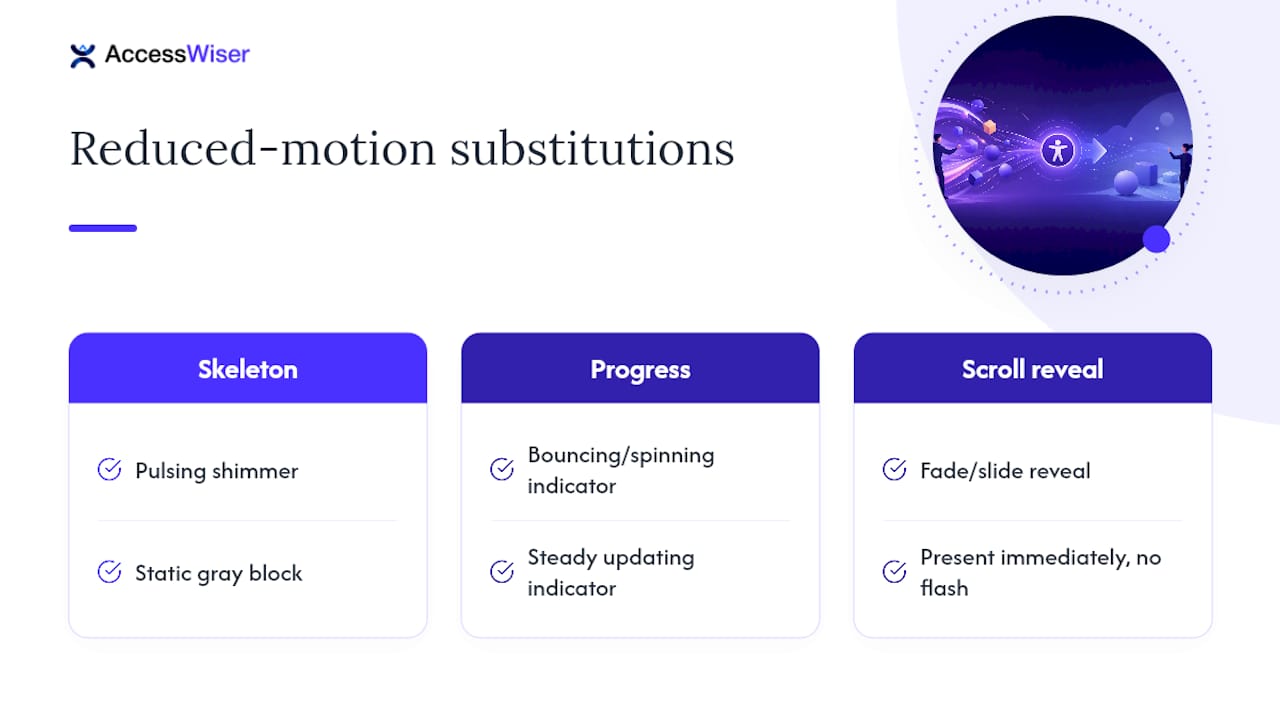
Scroll-triggered reveals deserve particular scrutiny. Under no-preference, content fading and sliding into view as someone scrolls can feel polished. Under reduce, that same content should simply be present, fully rendered, no delay, no partial-opacity flash while JavaScript decides whether to run the reveal. Test this specifically, since a common bug leaves content invisible until a scroll event fires, which is worse than the animation it was meant to replace.
Motion Reduction Beyond CSS Animations: Video and Transitions
prefers-reduced-motion isn’t only a CSS animation setting. Autoplaying video carries the same vestibular risk as a decorative parallax effect, arguably more, since video motion is often larger, faster, and harder to predict than a designed transition.
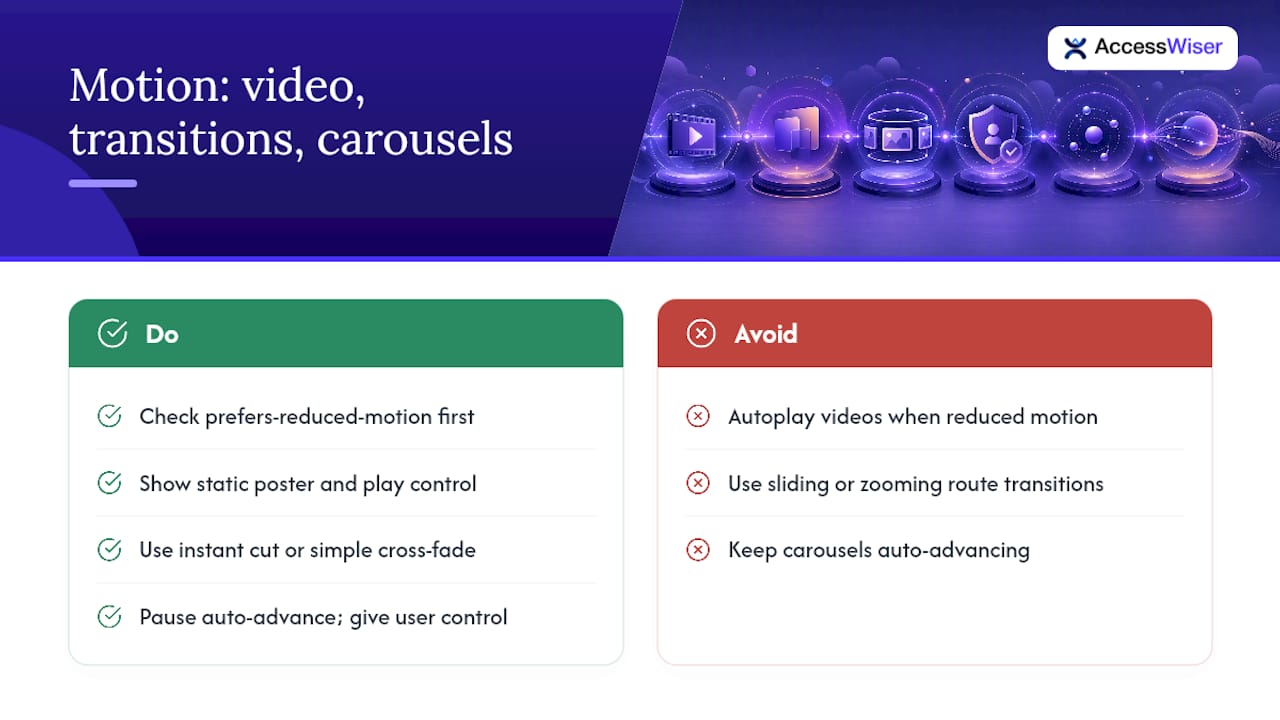
Check the setting before autoplaying any background video or hero video loop, and default to a static poster frame with a visible play control when reduce is detected. This isn’t a stretch interpretation of the spec, it’s the same non-essential-motion principle behind WCAG 2.3.3, applied to a different media type. Auto-playing motion that runs longer than five seconds also falls under 2.2.2 Pause, Stop, Hide, a Level A criterion, which requires a way to pause, stop, or hide it.
Page transitions deserve the same scrutiny. Single-page applications frequently animate route changes: the outgoing view slides left while the incoming view slides in, or the whole viewport zooms and repositions. Under a reduced-motion preference, swap that transition for an instant cut or a simple cross-fade at most. The navigation still needs to feel responsive, it just shouldn’t feel like it’s physically moving the viewer through space.
Carousels and auto-advancing content sliders are another common blind spot. Auto-advance timers should pause under reduce, handing control to the visitor rather than cycling content on a schedule they didn’t choose. This matters as much for cognitive accessibility as for vestibular safety. Unpredictable, moving content is hard to read for anyone, and genuinely disorienting for some.
Battery Life and Performance Gains From Reduced Motion
Honoring prefers-reduced-motion isn’t purely an accessibility cost center. It has a real, practical side effect on device performance that’s worth mentioning to any stakeholder who needs more than a compliance argument to prioritize the work.
Continuous animations, parallax scroll listeners, auto-playing video loops, requestAnimationFrame loops running indefinitely, all consume CPU and GPU cycles for as long as they run. On a laptop running on battery or a phone with a data cap, that’s measurable overhead for zero functional benefit to a visitor who’s already asked for less motion. Gating those effects behind the media query means you’re not running that code at all for a meaningful share of your audience, not just hiding its visual output with opacity: 0 while it churns away underneath.
This is also a case where the accessibility fix and the performance fix are the same fix. If your matchMedia gate stops a JavaScript animation loop from initializing entirely, rather than just skipping its CSS output, you’ve reduced actual computation, not just visual noise. Structure your gating logic with that in mind: check the preference before instantiating an animation library or starting a loop, not after.
Telling Visitors Their Motion Preference Is Respected
A setting that works invisibly is good engineering. A setting visitors can also see and control directly, without digging into OS settings menus, is better design. Not every visitor knows their operating system has a reduced-motion toggle, or where to find it, and plenty of people would appreciate the option without ever having gone looking for it.
Consider surfacing a simple, visible motion control somewhere accessible, a footer link, an accessibility menu, a settings panel, that lets someone override the default without touching system preferences. Some accessibility widgets let people adjust motion alongside contrast, text settings, and other display preferences directly on the page they’re viewing.
Document the setting’s existence somewhere visible too. A short note in your accessibility statement, something as simple as “this site respects your device’s reduced motion preference, and offers an additional in-page toggle,” tells visitors the choice was intentional rather than accidental. That kind of transparency builds trust with the people who need the feature most, and it signals to anyone auditing your site that motion accessibility was a deliberate design decision, not an afterthought you patched in after a complaint.
Get Reduced-Motion Coverage Documented, Not Just Implemented
The harder problem is knowing, with confidence, that every animated component across a growing codebase is still gated correctly six redesigns from now. That’s the gap AccessWiser’s scanning helps narrow: automated checks can flag missing media queries and un-gated JavaScript animations at the code level, tied to the specific element and WCAG criterion each one affects, with plain-language fix guidance attached to every finding.
Scheduled re-checks help catch the regression that tends to slip in when a new developer ships a component without knowing the site’s motion conventions. Dated records of every scan and fix give you documented evidence of ongoing accessibility work, rather than a one-time claim nobody can verify later. Explore AccessWiser’s accessibility solutions to see how scanning, remediation guidance, and monitoring fit together, or start a trial to see what your own site’s reduced-motion coverage actually looks like today.
The Playbook That Actually Holds Up in Production
Most advice on this topic stops at “add the media query,” and that’s where the real risk starts, not ends. The gap between a compliant-looking stylesheet and a genuinely safe experience is JavaScript, and it’s the piece almost every checklist skims past. A site can have a flawless prefers-reduced-motion: reduce block and still spin, parallax, and autoplay video for the exact visitor that rule was written for, because nothing in CSS reaches into a GSAP timeline or a scroll listener.
The defaults-first pattern deserves more credit than it gets. Building the reduced-motion state as your baseline, then adding motion back for no-preference, isn’t just cleaner code, it’s structurally harder to get wrong than the reverse. You can’t forget to gate an animation that was never unconditional to begin with.
If there’s one place to spend limited engineering time, it’s JS gating and its change listener, not additional CSS polish. That’s where implementations quietly fail, and where an automated scan earns its keep by flagging what a code review can miss.
The AccessWiser Team
Sources
Articles on this blog are general information about web accessibility, not legal advice. Laws change and their application depends on your specific situation — for decisions with legal consequences, consult a qualified legal professional.
Articles on this blog are general information about web accessibility, not legal advice. Laws change and their application depends on your specific situation — for decisions with legal consequences, consult a qualified legal professional.