Blog · 7 min read
Ship Fixes Fast: WCAG 2.2 AA Accessibility Testing for Developers

Run an automated scanner across every in-scope page today, then schedule a manual keyboard and screen reader pass before the week is out. Automated results alone will miss most of what matters. Together, they produce a prioritized list mapped to WCAG 2.2 AA, complete with the selector, screenshot, and reproduction steps a developer needs to fix it for good. AccessWiser can run this scan, map every finding to its criterion, and schedule re-checks so the work doesn’t quietly decay.
TL;DR:
- Automated scans detect only about 30 to 40 percent of WCAG failures, meaning manual testing is essential for comprehensive accessibility validation.
- Full-site audits that cover multiple pages and user flows provide much more useful information than quick single-page scans, which are mainly for triage.
- Rechecking fixes with automated tools and manual testing should be integrated into regular development cycles, not treated as one-off projects.
- Documenting each issue with detailed info and prioritizing fixes based on impact ensures steady progress and compliance accountability.
- Regular re-evaluation and continuous monitoring are necessary to prevent accessibility issues from reemerging as the site evolves.
Table of Contents
- What Do Automated Tools and Manual Testing Each Catch?
- How Do You Run a Website Accessibility Testing Workflow Step by Step?
- What Do Manual and Assistive Technology Checks Actually Look Like?
- What Standards Actually Govern Website Accessibility Compliance?
- How Do You Document and Prioritize Accessibility Fixes?
- Why Treat Accessibility Testing as a Program, Not a Project?
- Ready to Turn Findings Into Fixed Code?
- Sources
What Do Automated Tools and Manual Testing Each Catch?
Automated scanners are fast, consistent, and limited by design. They catch missing alt attributes, insufficient contrast, unlabeled form fields, and a fair amount of incorrect ARIA usage. What they cannot judge is whether an alt description actually makes sense, whether a custom dropdown traps keyboard focus, or whether a heading structure tells a coherent story to someone navigating by screen reader. Automated tools reliably detect roughly 30 to 40 percent of real WCAG failures, which means the majority of true barriers require a human tester.
The tool landscape breaks into a few clear categories:
- Browser extensions that scan one rendered page at a time and highlight violations inline.
- Online single page checkers for a fast, no install spot check on a public URL.
- CI or API scanning engines that run automatically on every deploy.
- Full site crawlers that queue and scan dozens or hundreds of pages in one pass.
The W3C’s list of accessibility evaluation tools is organized by exactly this distinction. A five-minute scan on your homepage tells you almost nothing about a checkout flow or a booking widget buried three clicks deep. Save the quick scan for triage, and reserve a full audit for anything a customer actually has to complete.
How Do You Run a Website Accessibility Testing Workflow Step by Step?
A defensible audit follows a fixed order, not a scramble through whichever page feels most broken.
- Define scope and standard. Pick WCAG 2.2 AA as the target, then list the specific pages and user flows in scope, from a checkout process to a contact form to a login screen.
- Establish your baseline. Lock in which browsers, screen readers, and device sizes you’ll test on, and version everything so a fix can be traced to a specific build.
- Run automated scans and consolidate. Export results from your scanner, merge duplicate findings across tools, and tag each one by the WCAG success criterion it violates.
- Verify manually. Tab through every interactive element, run a full screen reader pass, and pay close attention to dynamic widgets, modals, and anything built with custom ARIA.
- Re-test and automate the guardrail. Confirm each fix resolves the original issue, then wire automated scans into your CI pipeline so regressions get caught before they ship.
Pro Tip: Version your baseline the same way you version your code. A screen reader pass done on an old Chrome build tells you nothing useful six months later.
Section508 offers step-by-step procedures for common checks like accessible names and color contrast that fit neatly into step 3 or 4, depending on whether you’re automating them or verifying by hand.
What Do Manual and Assistive Technology Checks Actually Look Like?
Keyboard testing has a short, repeatable checklist: confirm a logical tab order, verify every focused element has a visible outline, make sure no control traps focus, check that modals move focus to themselves and back on close, and test that skip links actually skip to content.
Screen reader testing with NVDA or VoiceOver follows a different rhythm. Listen for whether headings announce a sensible outline, whether form fields announce their labels and error states, and whether dynamic content changes get communicated at all. A visually perfect page can be silent and confusing to a screen reader user, and you won’t know that until you close your eyes and use one.
Mobile checks round it out:
- Confirm text reflows cleanly at 320px width without horizontal scrolling.
- Test with TalkBack on Android and VoiceOver on iOS, not just a desktop screen reader.
- Check touch targets meet a reasonable minimum size, and that gesture-only interactions have a simpler alternative.
Pro Tip: If you can recruit even one screen reader user for a short remote session, do it. A 20-minute call surfaces friction that a checklist never will.
What Standards Actually Govern Website Accessibility Compliance?
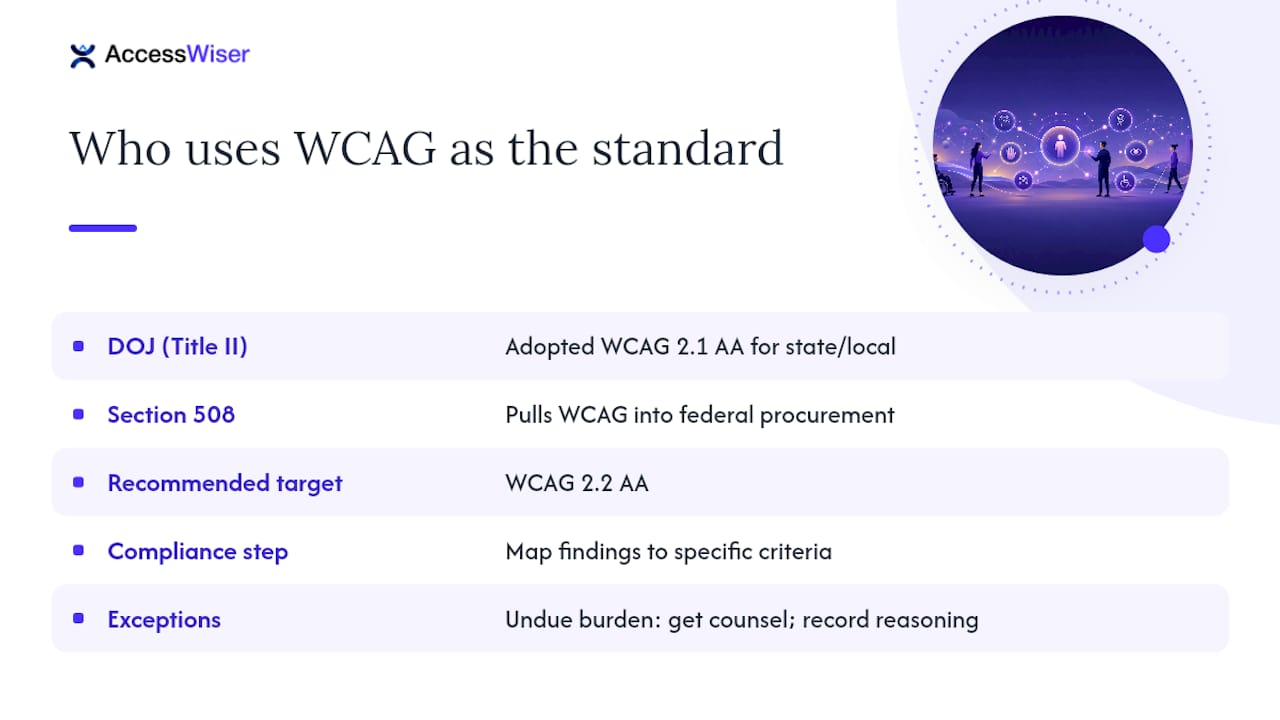
WCAG is technical guidance, not law by itself, but it’s the benchmark every enforcement body points to. The Department of Justice adopted WCAG 2.1 Level AA as the required standard for state and local government web content under Title II of the ADA, with staggered deadlines by population size. For everyone else, WCAG functions as the primary evidence courts and the DOJ use when weighing ADA complaints, and Section 508 pulls it directly into federal procurement requirements. Targeting WCAG 2.2 AA and mapping every finding to its specific criterion is what turns a pile of bugs into a documented compliance record. If you believe an exception applies, such as an undue burden claim, get legal counsel involved before you rely on it, and record the reasoning either way.
How Do You Document and Prioritize Accessibility Fixes?
A finding that just says “fix the button” wastes a developer’s time. Every issue needs the same fields, every time:
- Page URL and the specific selector or code snippet involved
- The WCAG success criterion it violates
- Severity and a plain description of the user impact
- Steps to reproduce
- A suggested code-level fix
- A screenshot or short recording
Fix order matters as much as the list itself. Anything that blocks access entirely, like a login form a screen reader can’t complete, goes first. High-frequency, high-impact issues on core flows come next, followed by medium and low severity fixes you can batch. Knock out a few quick wins early to show visible progress while the bigger fixes are in progress.
Monitoring is what keeps a clean audit from decaying within a quarter. Wire automated scans into CI, run a scheduled full-site scan on a recurring cadence, and keep dated records of every scan and fix. Publishing an accessibility statement alongside that record gives you a public, dated account of the work.
Why Treat Accessibility Testing as a Program, Not a Project?
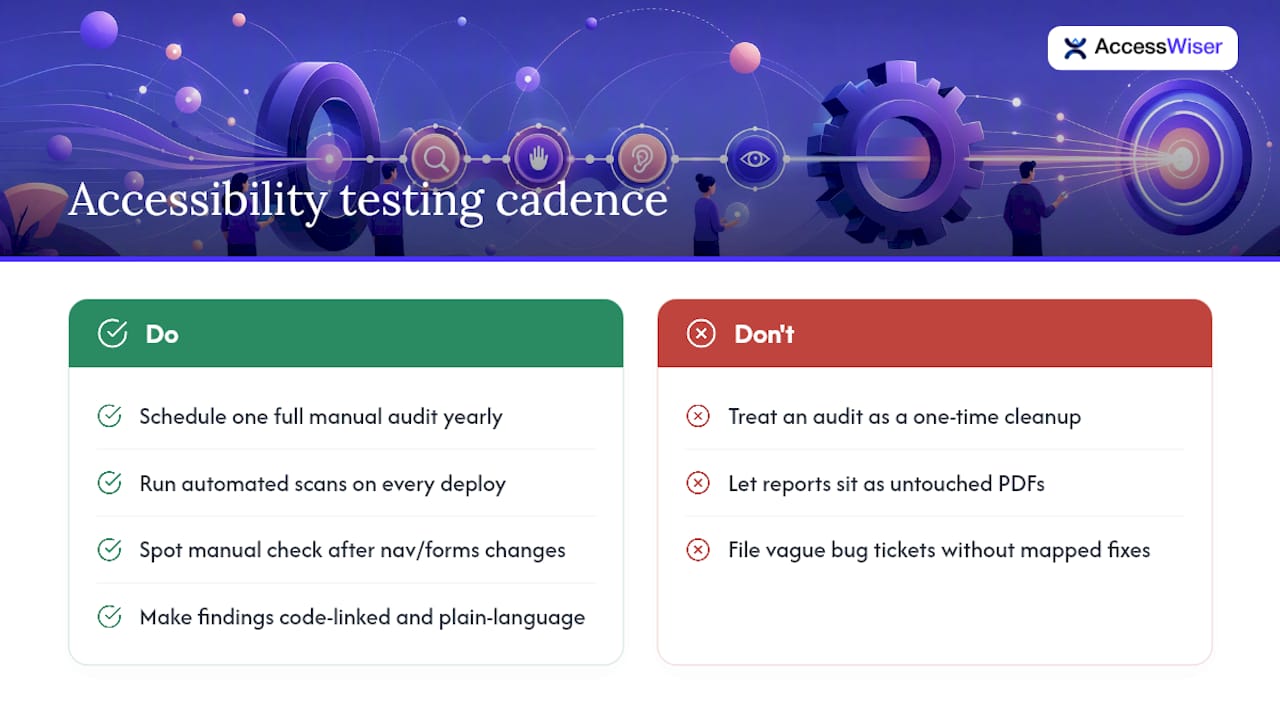
The biggest mistake teams make is treating an audit like a one-time cleanup instead of a standing part of the release cycle. Most real WCAG failures live in custom widgets and dynamic controls, not static text, so a site that passes today can fail again the moment a developer ships a new date picker. We’d recommend one full manual audit a year, automated scans on every deploy, and a spot manual check after any release that touches navigation or forms.
What separates a useful audit from a wasted one is whether findings are actually usable. Code-linked issues, plain-language fixes, and scheduled re-checks turn a report into something a developer opens and closes in a sprint, not a PDF that sits untouched. Pick one critical flow, your checkout or your signup, and run this workflow against it this month. You’ll see how fast a mapped, documented finding moves compared to a vague bug ticket.
— The AccessWiser Team
Ready to Turn Findings Into Fixed Code?
AccessWiser runs the automated side of this workflow for you, scanning your site against WCAG 2.2 AA with Section 508 and EN 301 549 mappings, then tying each finding to the exact element and criterion it affects. Every issue comes with plain-language guidance for fixing it directly in your code, not a runtime patch that disappears if the widget ever gets removed. Scheduled re-checks catch regressions automatically, and dated records of every scan and fix build the documentation trail a compliance program actually needs. Start with a free trial scan to see your own site’s prioritized, WCAG-mapped issue list, or look at the full feature set if you’re managing accessibility across multiple sites or clients.
Sources
- Ada
- Federal Register – Accessibility of Web Information and Services (DOJ final rule)
- Section508
- W3C — Web Accessibility Evaluation Tools list
Recommended
Articles on this blog are general information about web accessibility, not legal advice. Laws change and their application depends on your specific situation — for decisions with legal consequences, consult a qualified legal professional.
Articles on this blog are general information about web accessibility, not legal advice. Laws change and their application depends on your specific situation — for decisions with legal consequences, consult a qualified legal professional.